Savor is a sample app with a server behind it. A customer browses the restaurants that deliver to them, fills a cart and pays. The restaurant accepts the order and cooks it, the nearest courier is offered the delivery, collects it and brings it to the door while the customer follows it on a map, and an administrator runs the service. The app and the server are one Maven project, written in Java on both sides, and the Initializr’s food-delivery template generates it under your own name.
This chapter is the user’s guide: what each of the four kinds of user sees and can do. Savor: Building on the sample is the other half. It explains how the project is built and what it does differently from Wayline, the ride-hailing sample it grew from.
One app serves all four. The server gives every account a set of roles, and the app opens on the screen that fits them: a customer on the restaurants, a merchant on the restaurant’s order queue, a courier on the delivery screen, an administrator on the operations console. Someone who holds more than one role switches between them from the menu.
| Role | What it adds |
|---|---|
Customer | Every account is a customer. Choose where to deliver to, browse and search the restaurants, build an order, pay, follow it to the door, rate it, tip and keep the receipt. |
Merchant | Granted when an administrator approves a restaurant. Accept or reject the orders that arrive, say how long the kitchen needs, mark them ready, pause the restaurant, edit the menu and read the sales. |
Courier | Granted when an administrator approves an application to deliver. Go online, accept or decline the deliveries offered, collect and deliver them, and see and cash out what they earned. |
Admin | Granted by another administrator. See the service in numbers and charts, approve restaurants and couriers, flag or block accounts, cancel and refund orders, read the payments, and set the prices and the promo codes. |
Trying it
Start the server on its development profile and it creates a set of accounts, all
with the password savor-demo, twelve restaurants with their menus, and two weeks
of orders so that the charts have something to draw. Running it has the
commands.
| Account | Role |
|---|---|
| Customers. |
| A customer an administrator has flagged. |
| Runs the kitchen of Ember & Crust, one of the twelve restaurants. |
| Approved couriers. |
| Approved couriers who carry the two weeks of past orders. |
| Has applied to deliver and is waiting for a decision. |
| Runs the service. |
A customer alone can watch an order come all the way. On the development profile a simulated kitchen accepts and cooks the orders of every restaurant that has no merchant, and a simulated courier takes the delivery while no real courier is online. Sign in as the merchant and as a courier in other simulators to play those parts yourself.
No money moves on a development server, which simulates cards unless it’s told to use a payment provider. An order’s total is held on the card when it’s placed and taken when the food arrives. Five numbers behave in five ways:
| Card number | What happens |
|---|---|
| Accepted, and every hold and charge succeeds. |
| Declined when you try to add it. |
| Accepted and held, then declined when the order arrives. |
| Accepted and held, then taking the money fails without an answer, so the order’s payment stays pending. |
| Accepted, and every charge succeeds. A refund is pending at first, and shows as refunded about a minute later. |
Any expiry date in the future and any security code work with them. The codes
WELCOME10 (10% off an order of $15 or more) and SAVOR5 ($5 off an
order of $25 or more) work once per account.
Getting in
The welcome screen offers to sign in or to create an account. Server address
is there for a phone on the same network as a development server: localhost on a
phone is the phone, so the app has to be told where the server is. The app in a
browser has no such entry: it always talks to the server that hosts it.
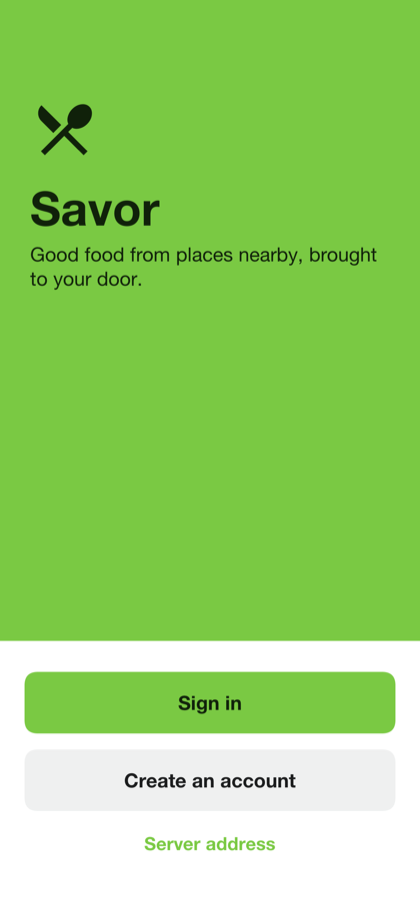
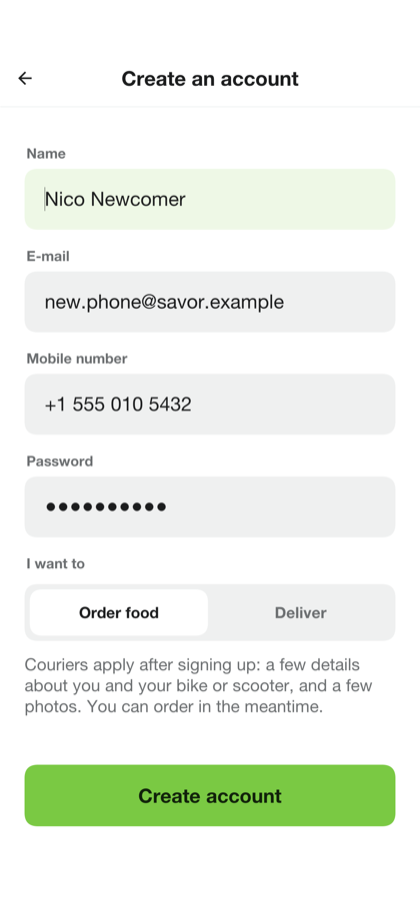
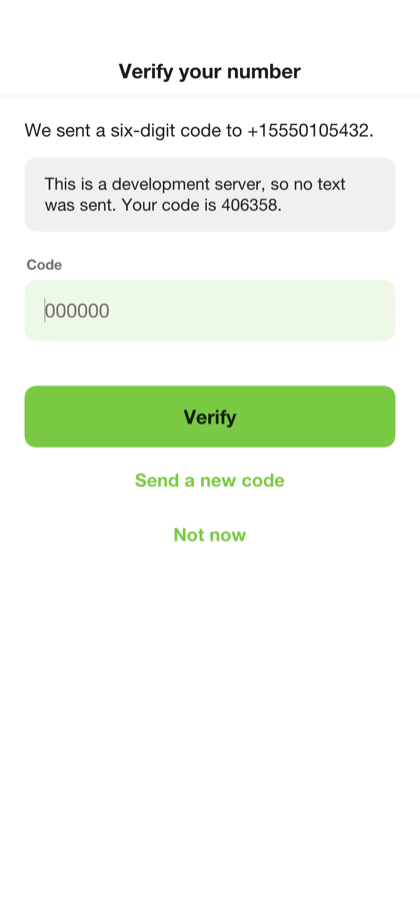
A new account asks for a name, an e-mail address, a mobile number and a password, and whether the person also wants to deliver. The mobile number is verified with a code sent as a text message before the first order, because the courier calls it from the door. A development server prints the code on its console and the app shows it.
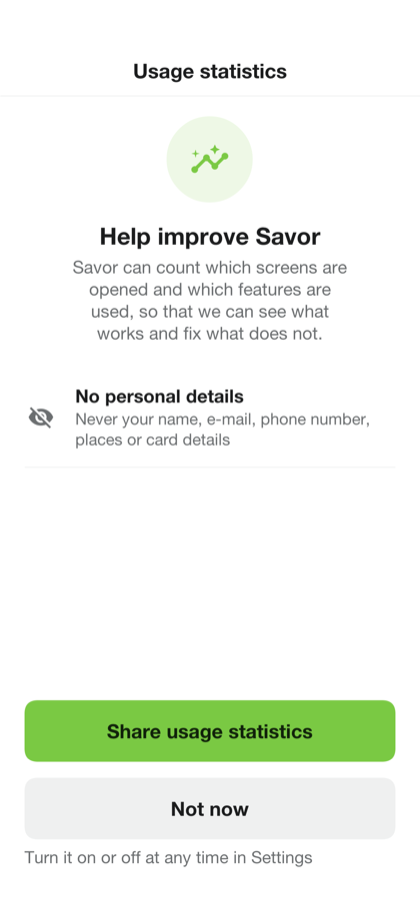
The first sign-in on a device asks whether the app may share usage statistics. The answer can be changed in the settings at any time.
The customer
The home screen starts with where the food goes. The address under Deliver to is the device’s position until another is chosen, and tapping it searches for a street, a place or a saved address. Under a greeting that follows the time of day are the cuisines, the order to list the restaurants in (nearest, top-rated, lowest fee or fastest) and the restaurants themselves: the ones that deliver to the address, each with its rating, its time to the door and its delivery fee. A restaurant that’s closed or paused says so and still shows its menu.
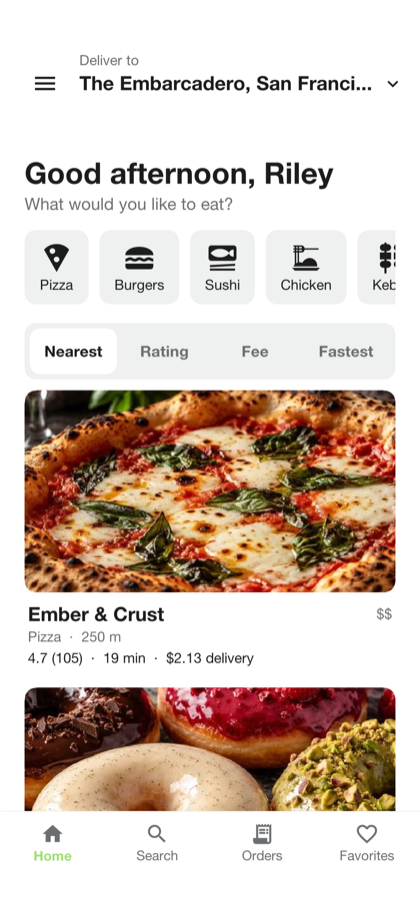
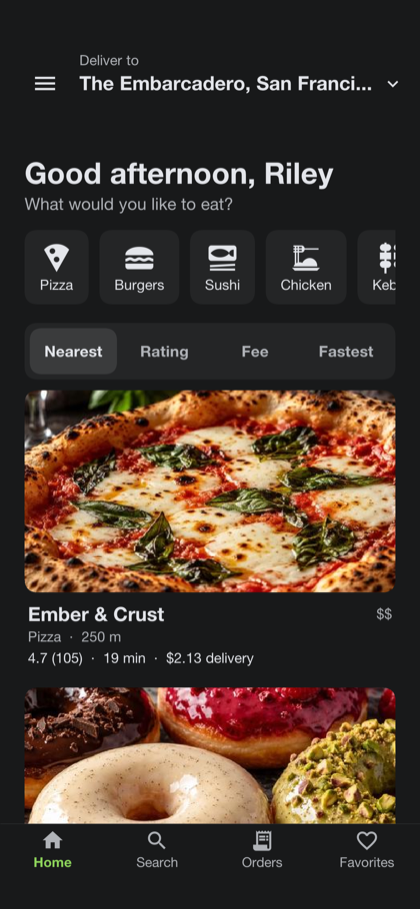
Search finds restaurants by their name, their cuisine or a dish on their menu. Orders lists what’s on its way and what came before, with a button to order a past one again, and Favorites keeps the restaurants marked with a heart.
A restaurant’s page shows its menu by section. A dish with choices — a size, a sauce, extra toppings — opens on a page of its own, which says which choices are required and how many of each may be picked, and adds the dish with a quantity. The cart button at the bottom follows the order’s total. A cart holds the dishes of one restaurant: adding a dish from another asks first and starts again.
The checkout lists the dishes, takes a note for the kitchen, the card or cash that pays, a promo code and a tip for the courier, and shows the total as the server prices it: the food, the delivery fee, the service fee, a small-order fee for a small order, the tax, the discount and the tip. The tip chosen is remembered for the next order.
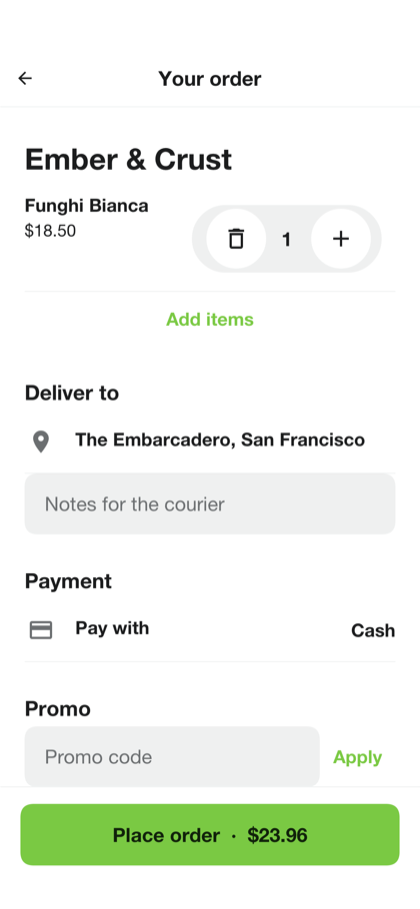
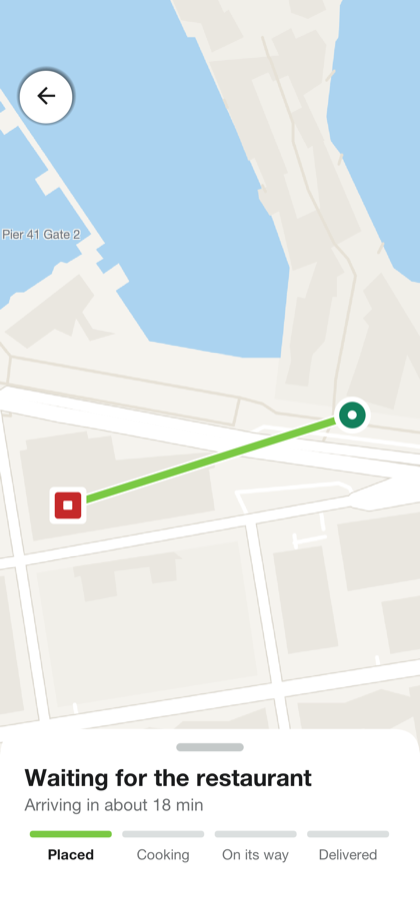
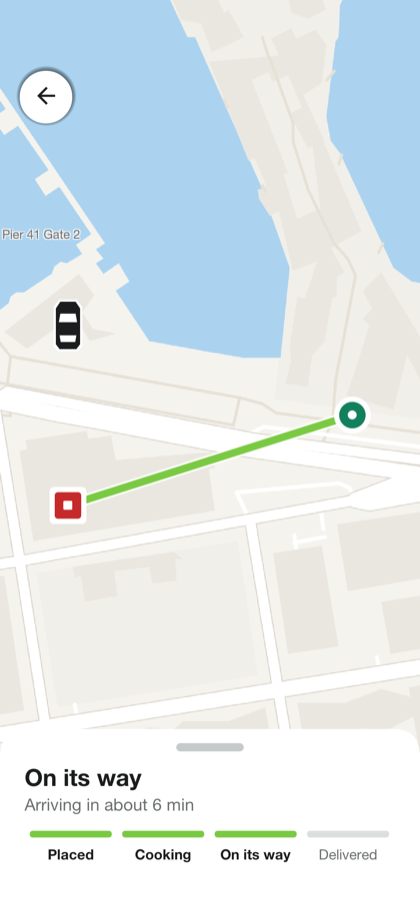
Place order holds the total on the card and opens the order on a map. The steps across the bottom follow it: waiting for the restaurant, being prepared, ready, on its way and delivered. Until the restaurant accepts it the order can be cancelled, and the hold on the card is let go. Once a courier has it the map shows the courier’s position and the time to the door, and the courier can be called or texted.
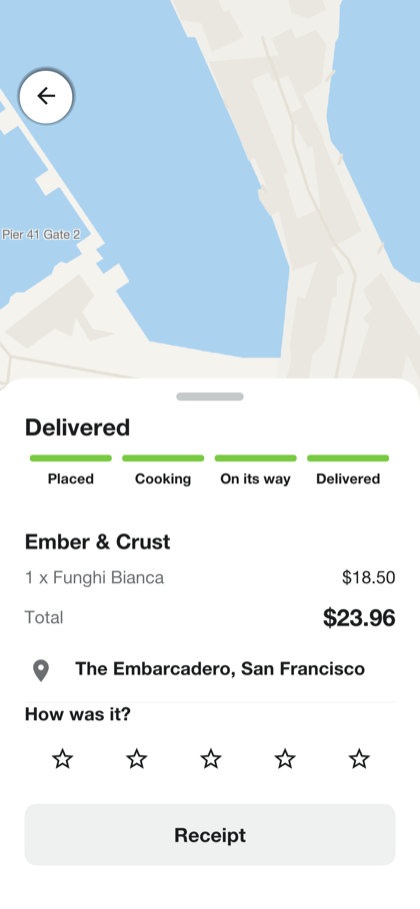
When the food arrives the order asks for a rating and offers the receipt. The card is charged then, for the total that was held.
Wallet and receipts
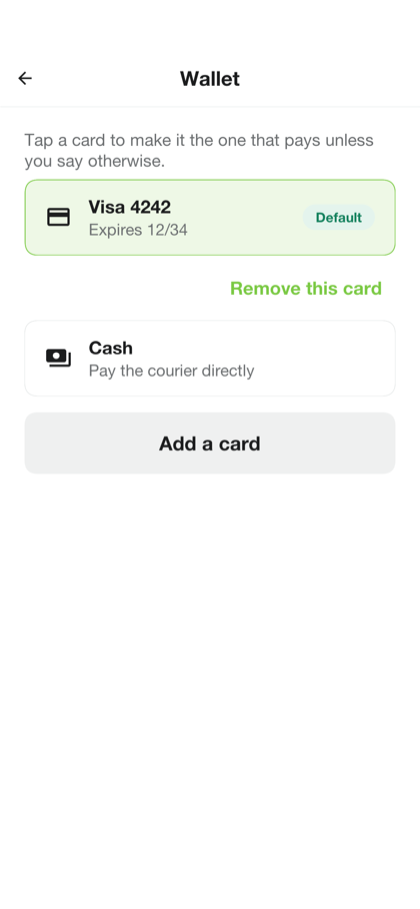
The wallet holds the account’s cards and cash. Tapping one makes it the default, which the checkout starts from. A card is added on a form of its own, or on the payment provider’s page when the server uses one, so its number never reaches the app or the server.
A receipt shows what was paid, part by part, and takes a tip for the courier afterward, once.
The merchant
A merchant opens on their restaurant’s queue. A new order arrives with a sound and a vibration, without the screen being reloaded, and the queue keeps the orders that still need the kitchen at the top. On a tablet or a desktop the order opens beside the queue; on a phone it opens on a screen of its own.
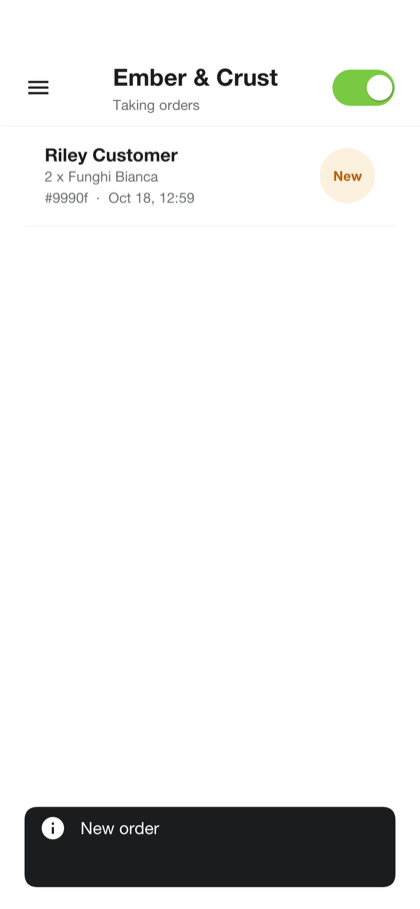
An order shows its dishes with their choices, the customer’s note and the total of the food. Accept takes it with the time the kitchen needs, which the customer sees, and sends for a courier at once, so that one is on the way while the food cooks. Reject asks for a reason, which the customer reads, and lets the hold on the card go. Mark ready tells the courier to collect it: a courier can’t take an order the kitchen hasn’t finished.
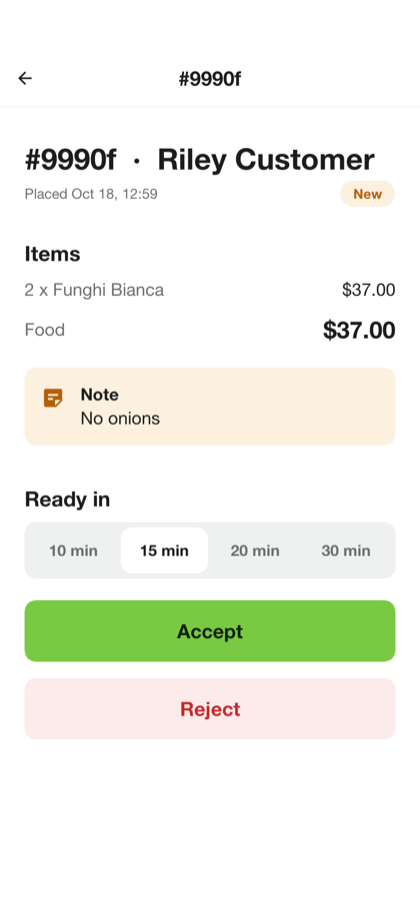
The switch at the top pauses the restaurant: customers still see it, and can’t order. The menu editor adds and renames sections, adds dishes with a photograph, a price and choices, and marks a dish sold out for the day. Sales totals what the restaurant earned, after the service’s commission.
Anyone can ask for a restaurant to be listed, from the menu of the customer’s home screen. It waits, unseen by customers, until an administrator approves it, and the account that asked then becomes its merchant.
The courier
Anyone can apply to deliver, from the menu of the customer’s home screen.
Applying to deliver
The application asks for the courier’s details, the vehicle, and five photographs: an identity document, the driving license, a selfie, the vehicle registration and the insurance. Each can be taken with the camera or picked from the gallery, and the application can be left and finished later.
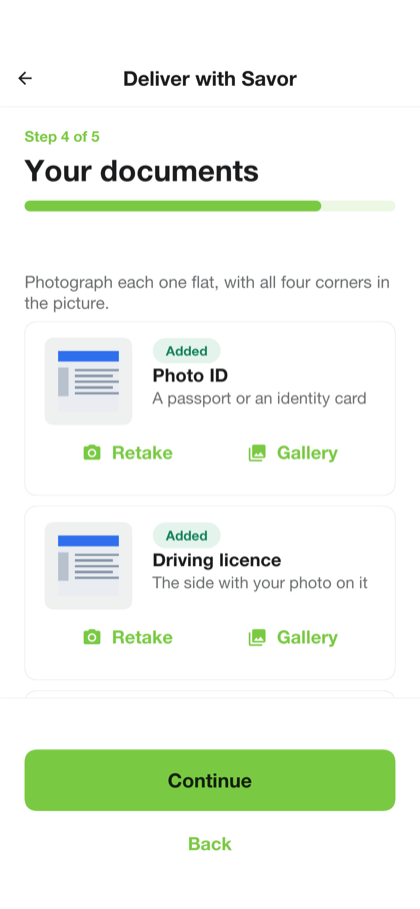
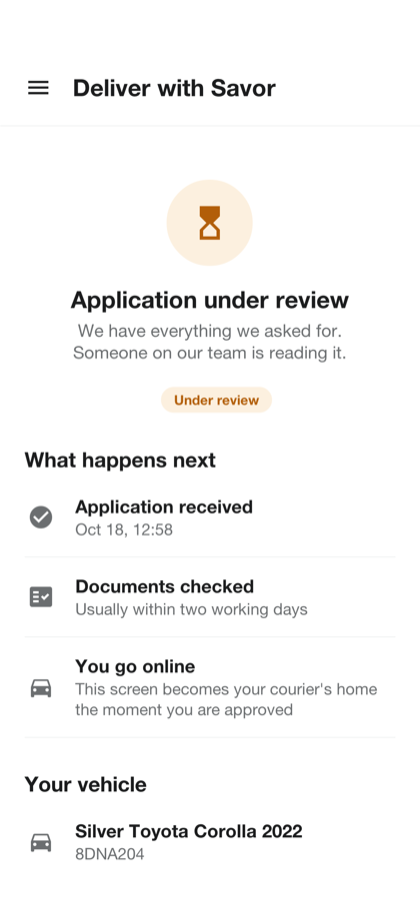
Once sent, it waits for an administrator. A rejection carries a reason, and the applicant can correct the application and send it again.
Delivering
An approved courier opens on the delivery screen. Go online makes them one of the couriers the server offers deliveries to: those near the restaurant, as soon as its kitchen accepts an order.
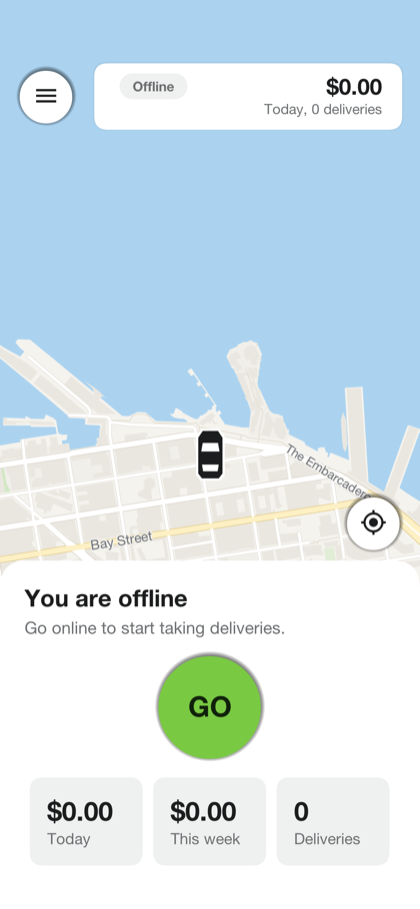
An offer shows what the courier is paid — the delivery fee and the tip — the restaurant, the distance and a countdown. Declined or left to run out, it goes to the next courier.
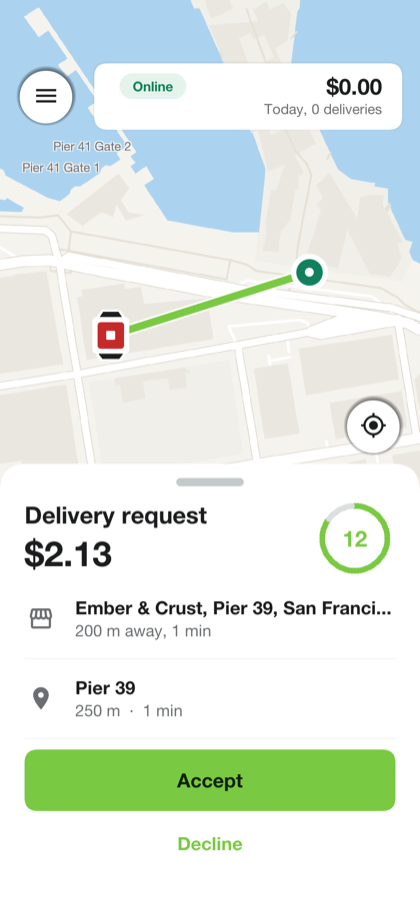
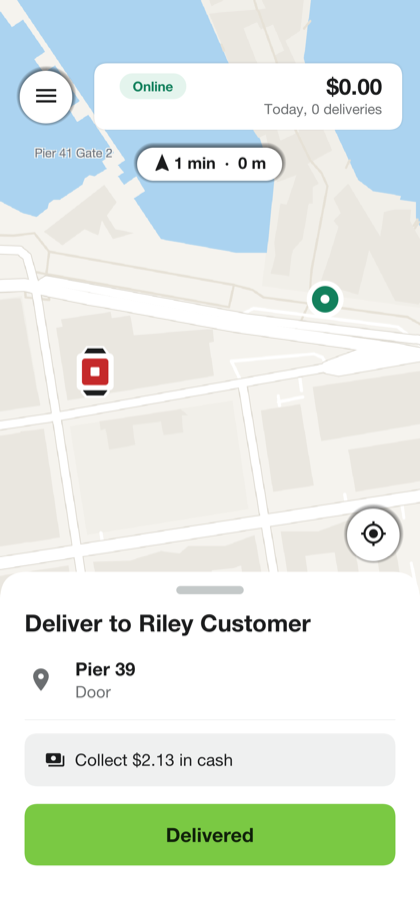
An accepted delivery is two legs. The first leads to the restaurant, where a button tells the kitchen the courier is waiting. Collecting the food works once the kitchen has marked the order ready, and the second leg leads to the door, with the customer’s name, the address, the note and, for an order paid in cash, the amount to collect. Delivered ends it.
Earnings
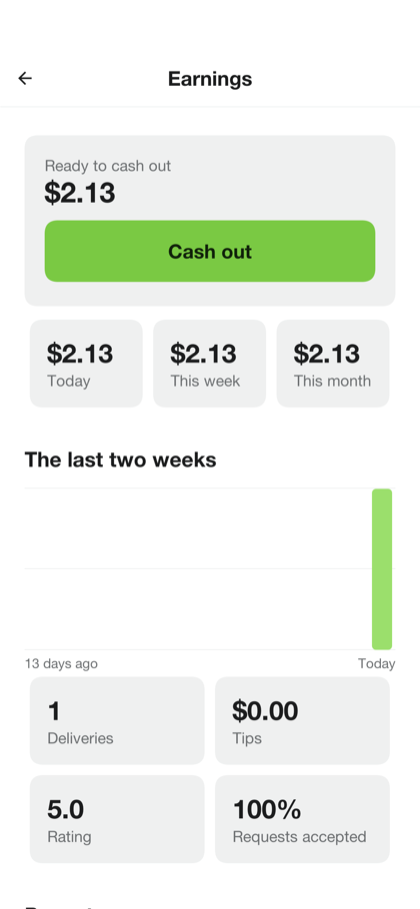
The earnings screen shows the balance that can be cashed out, the totals for today, this week and this month, and a chart of the last two weeks.
The administrator
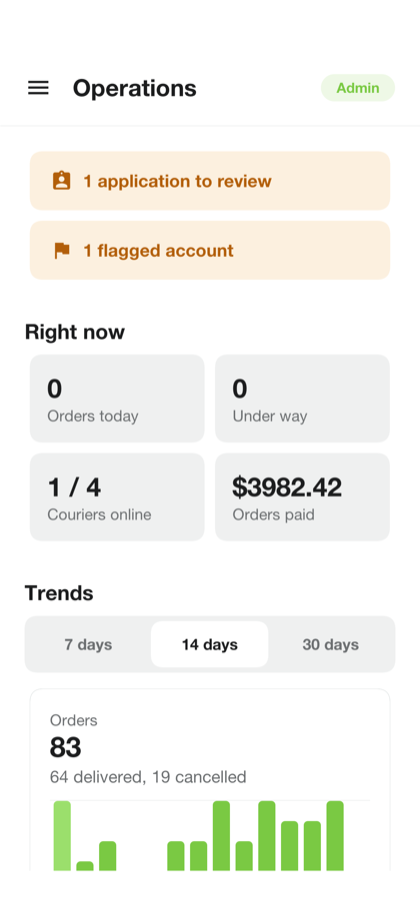
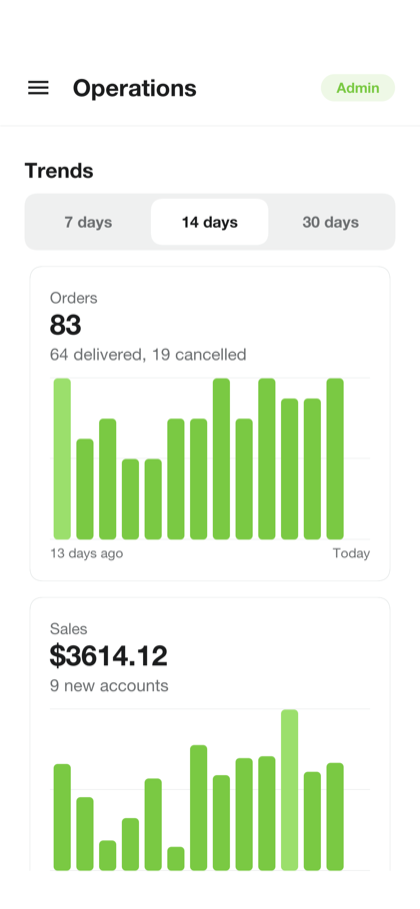
The operations console starts on a dashboard: what needs an answer — restaurants and couriers waiting for approval, flagged accounts — above the service as it’s now, and charts of orders and their value over the last two weeks.
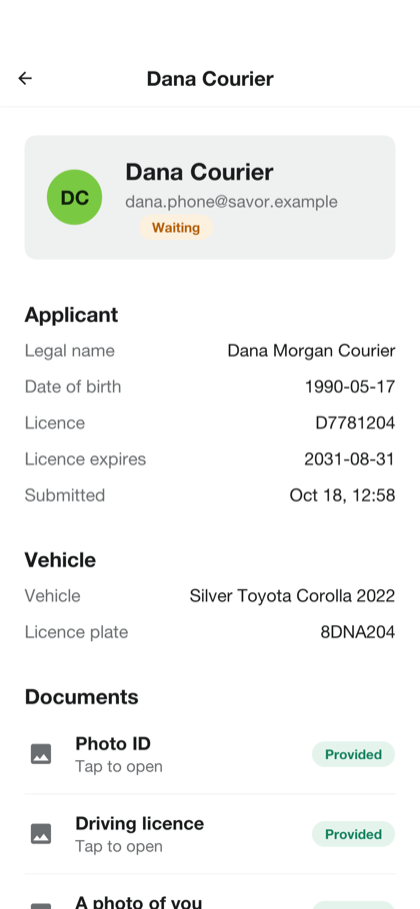
Restaurants lists them by status: waiting, approved, suspended, or rejected. A waiting one is approved or rejected with a reason; an approved one can be suspended, which takes it off the customers' lists, and let back later. Couriers holds the applications to deliver, each with its documents.
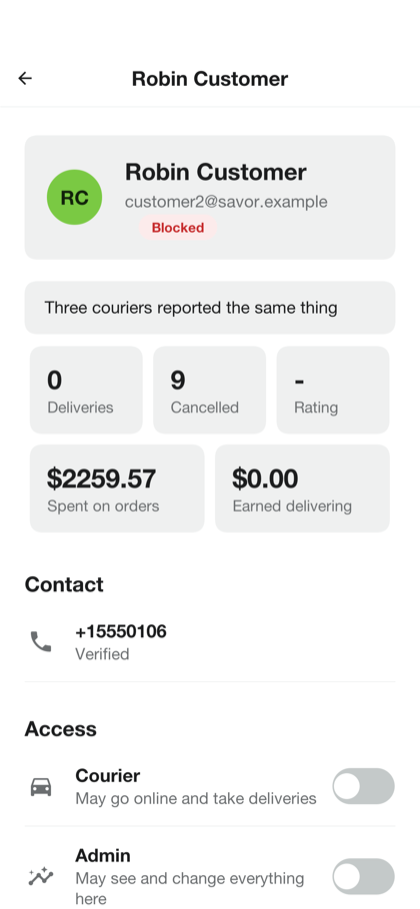
People finds any account. An account can be flagged or blocked with a reason that’s kept in its history, and a blocked account can neither sign in nor be offered a delivery.
Orders lists every order with its state. One that hasn’t arrived can be cancelled, which lets the hold go; one that has can be refunded in full or in part. Payments lists each charge, Pricing sets the delivery fee and its price by distance, the small-order fee, the service fee, the commission and the tax, and Promos creates and ends promo codes. The live map shows the couriers who are online.
On a tablet or a desktop the console lays its sections down the left side and opens what’s picked beside its list.
Settings
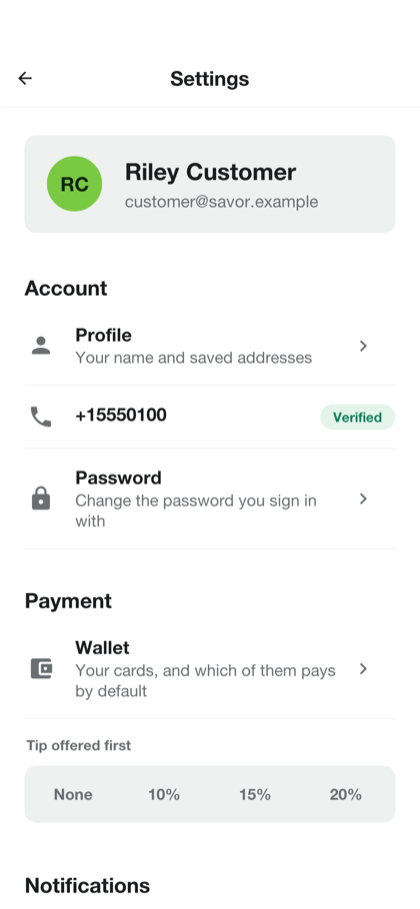
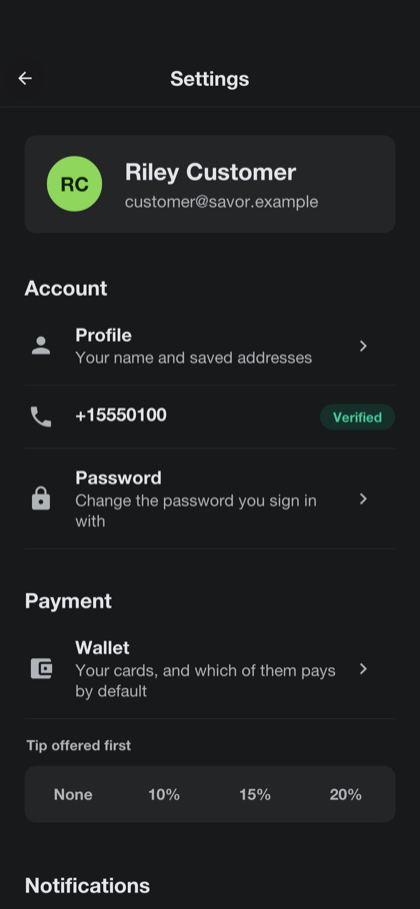
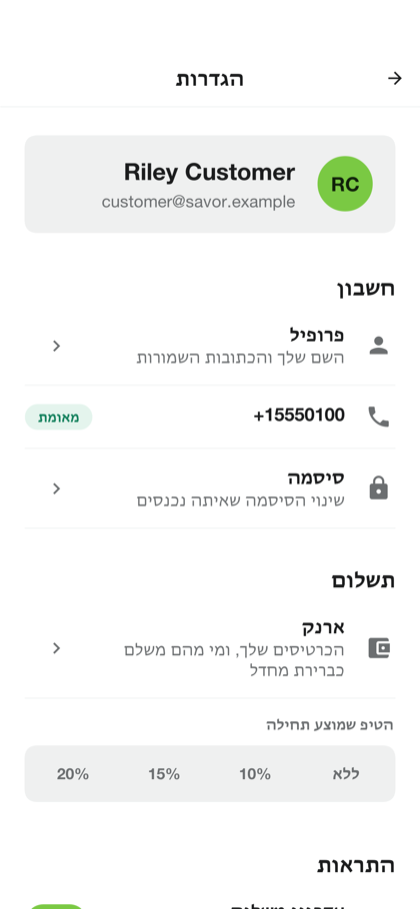
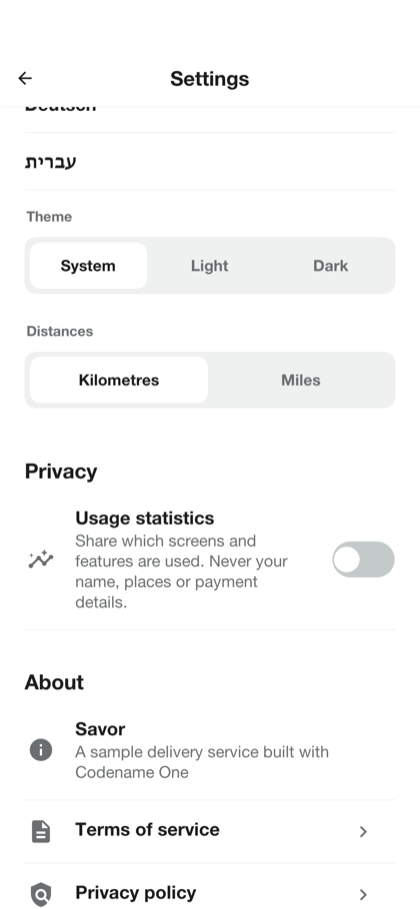
The settings hold the account — its name, phone number and password — the cards, the language, the theme, notifications and the usage statistics. The app is in English, Spanish, French, German and Hebrew, and in Hebrew it’s laid out from right to left.
In a browser
The server can host the app itself: open the server’s address in a browser and the same app loads there, signs in against that server and opens its live channel to it. A browser gives a page less than a phone gives an app, and the app says so where it matters. Calling and texting a courier are offered only where the device can dial, and the restaurants listed are those near a default address when the browser won’t say where it is.